Create a custom frontend
Learn how to create a custom frontend in the Frontdoor console and configure the necessary DNS records at your domain provider.
Creating a custom frontend allows you to serve your NetFoundry Frontdoor shares from your own domain name. This provides a seamless, professional experience by replacing the default URL with a branded link (e.g., files.your-company.com).
In addition to branding, a custom frontend is a prerequisite for securing your shares with an OAuth provider, allowing you to enforce authentication from identity providers like OIDC, GitHub, or Google.
Steps
- Frontdoor console
- Command-line interface
-
From the Frontdoor console, click Frontends in the left-hand menu.
-
Click the + icon to create a new custom frontend.
-
Enter your domain name.
-
(Optional) Select an auth provider.
-
Click Save.
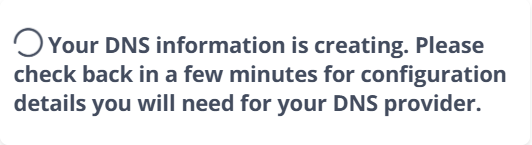
You'll get a loading message that your DNS info is being created. You can wait for it to finish, or navigate away and come back later:
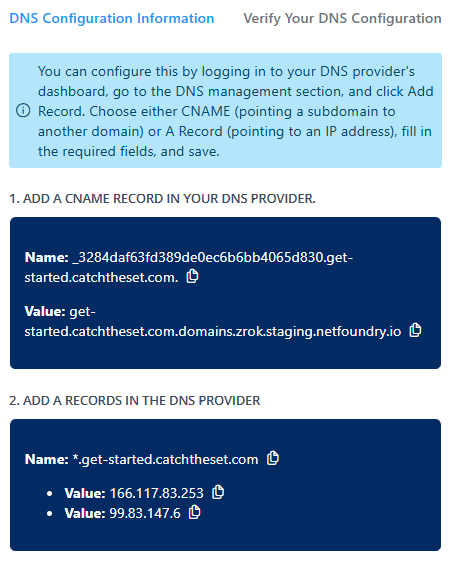
Once the DNS info is ready, the screen will refresh with your CNAME record and A Record info. If it doesn't, close the custom frontend creation window, return to Frontends, refresh, and select your newly created custom frontend:
-
Create the CNAME and an A Record (with both values) in your DNS provider, as shown in the Frontdoor console.
The Status for your custom frontend will be
PENDING_DNS_VERIFICATIONuntil you create the records in your DNS provider. It takes some time for the DNS changes to propagate.:::info DNS provider name formatting Different DNS providers handle the Name or Host field differently, which can often lead to verification failures.
- Full-domain entry: Some enterprise providers, like AWS Route 53, require you to paste the entire string
provided in the UI (e.g.,
_a19b...bc4.docs.example.com). - Subdomain-only entry: Many consumer-focused providers, like GoDaddy, automatically append your root domain to any
record you create (so, instead, use
_a19b...bc4.docs). :::
- Full-domain entry: Some enterprise providers, like AWS Route 53, require you to paste the entire string
provided in the UI (e.g.,
-
Once the DNS changes update in the UI, the Status for your frontend will change to
DEPLOYEDand it's ready to use. -
(Optional) NetFoundry will verify your DNS records, but you can also verify manually using command-line tools like
nslookupordig.Click the Verify your DNS records tab to see the
nslookupcommands and sample responses provided by NetFoundry to confirm your records are set up correctly.For example:
nslookup test.docs.example.com
Use the REST API to create a custom frontend for Frontdoor.
-
Replace the placeholders and run:
curl --location "https://gateway.production.netfoundry.io/frontdoor/$FRONTDOOR_ID/custom-frontends" \--header "Content-Type: application/json" \--header "Authorization: Bearer $TOKEN" \--data '{"domainName": "'"$DOMAIN_NAME"'","authProviderIds": ["'"$AUTH_PROVIDER_ID"'"]}'- The
authProviderIdsarray is optional. Only include it if you want to attach an OAuth auth provider to this frontend. - The response will return a JSON object with the
customFrontendIdand statusNEW.
- The
-
After creation, it may take a minute for the frontend status to update to
PENDING. You can check the frontend status:curl -s \-H "Authorization: Bearer $TOKEN" \-H "Accept: application/json" \"https://gateway.production.netfoundry.io/frontdoor/$FRONTDOOR_ID/custom-frontends" -
Once the frontend status is
PENDING, fetch the DNS info:CUSTOM_FRONTEND_ID="your_custom_frontend_id_here"curl -s \-H "Authorization: Bearer $TOKEN" \-H "Accept: application/json" \"https://gateway.production.netfoundry.io/frontdoor/$FRONTDOOR_ID/custom-frontends/$CUSTOM_FRONTEND_ID/dns-records"The response will include:
{"frontdoorId": "your_frontdoor_id","customFrontendId": "custom_frontend_id","domainName": "files.your-company.com","aRecord": {"name": "*.files.your-company.com","ipAddress": ["75.2.114.129","166.117.134.68"]},"cnameRecords": [{"name": "_randomhash.files.your-company.com.","value": "files.your-company.com.domains.zrok.sandbox.netfoundry.io"}]} -
After updating your DNS, you can verify DNS propagation using
digornslookup:dig +short *.files.your-company.comdig +short _randomhash.files.your-company.comOnce DNS resolves correctly, the frontend status will change to
DEPLOYED.