Use network activity
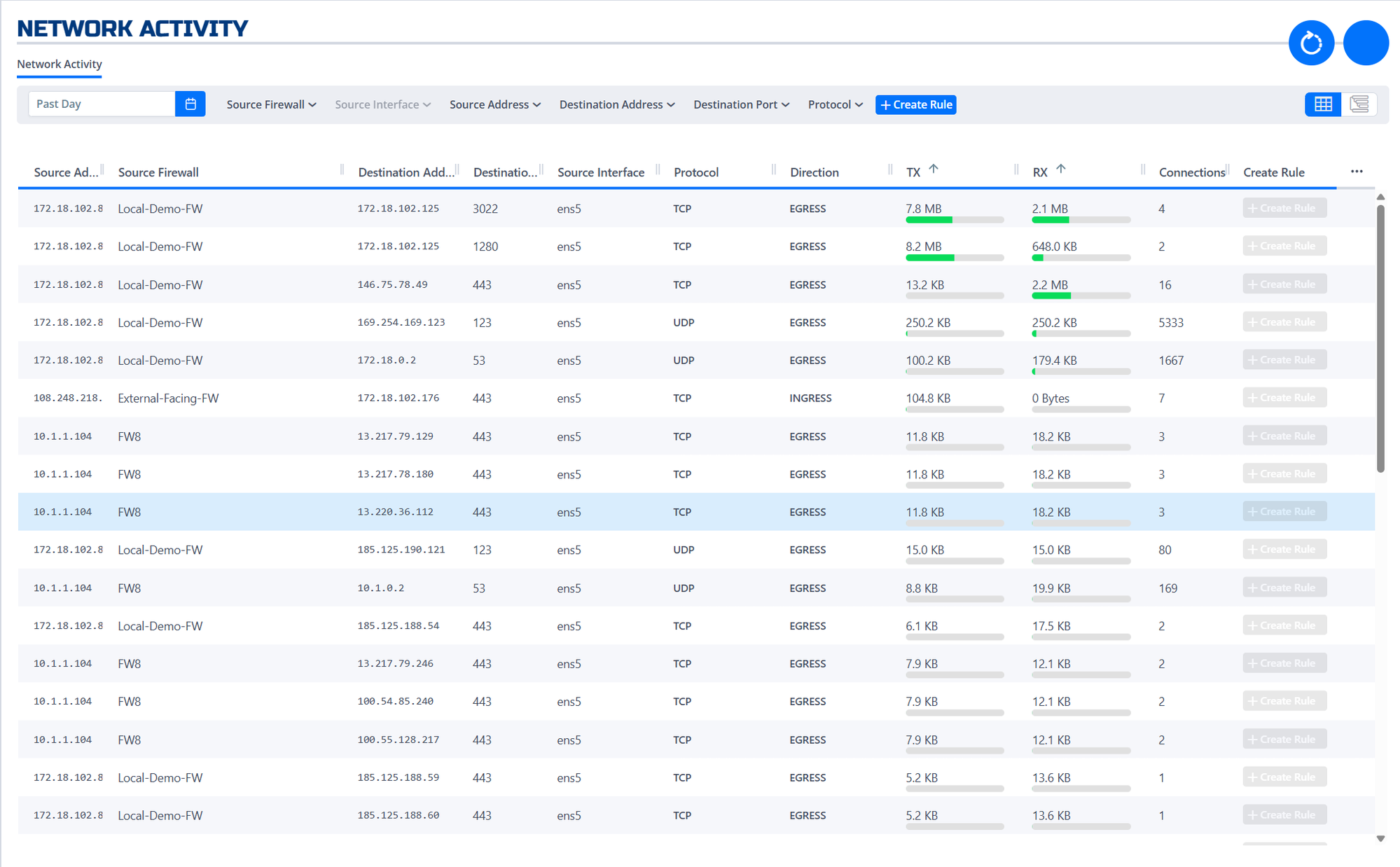
The Network Activity page shows observed network flows and traffic patterns across your firewalls. Use it to explore what's happening on your network, identify unknown or unwanted traffic, and create firewall rules directly from what you see.
When discovery mode is enabled on an interface, the firewall allows all traffic through, regardless of any rules configured for that interface. Discovery mode can run indefinitely. You decide when you've seen enough traffic, then disable it to begin enforcing rules.
Filter network flows
Use the search and filter fields at the top of the page to narrow down the flow list:
| Filter | Filter by |
|---|---|
| Time range | Date/time window for observed flows (defaults to Past Day; click the calendar icon to change it) |
| Source Firewall | Firewall name |
| Source Interface | Interface name (e.g., ens5) |
| Source Address | Source IP address or subnet |
| Destination Address | Destination IP address or subnet |
| Destination Port | Port number or range |
| Protocol | Protocol (TCP or UDP) |
Combine filters to isolate specific traffic for analysis or rule creation.
Table columns
Each flow row includes:
| Column | Description |
|---|---|
| Direction | Whether the flow is INGRESS (into the firewall) or EGRESS (out of the firewall) |
| TX | Bytes transmitted for the flow |
| RX | Bytes received for the flow |
| Connections | Total number of connections observed for the flow |
Switch between grid and roll-up view
By default, the page shows the Grid View, which lists each flow individually. To group flows by firewall, click the View icon at the top right of the table to switch to Roll-Up View. Click it again to return to grid view.

Roll-up view makes it easier to spot patterns and high-level trends across many flows.
Create a rule from a discovered flow
You can create a rule from a specific flow, or open a blank rule from the toolbar.
-
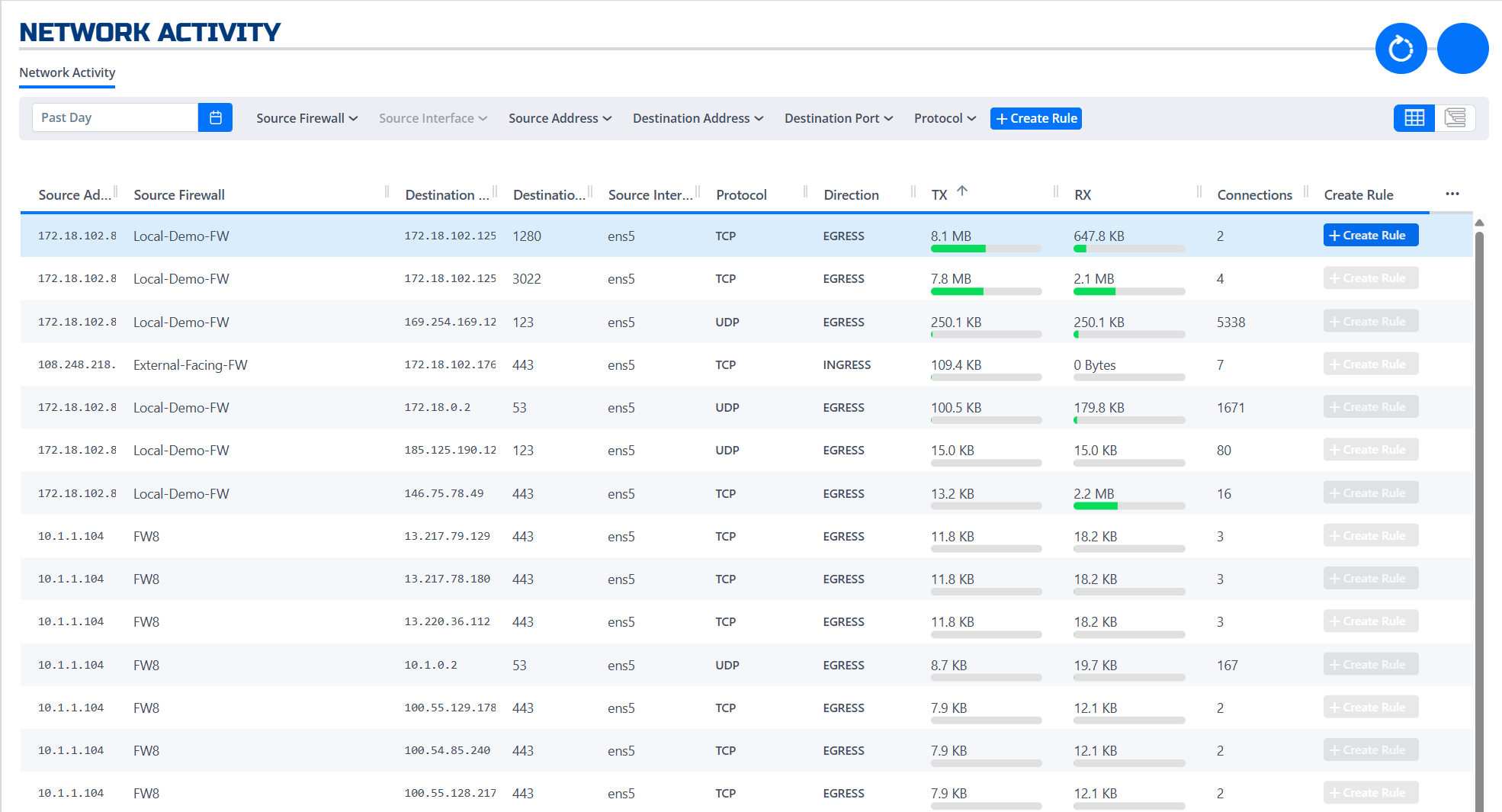
On the Network Activity page, find the flow you want to allow or block.
-
Click the
 icon in that row's Create Rule column.
Alternatively, click the + Create Rule button at the top right of the filter bar to open a blank rule.
The rule creation dialog opens, pre-filled with the source, destination, port, and protocol from that flow (or blank if opened from the toolbar).
-
Adjust the rule details as needed and set the action to Allow or Block.
-
Click Done to save the rule. It becomes active immediately and appears in your firewall's rule set.
For more on managing rules, see Manage firewall rules.