Keycloak
The following fields are necessary in order to configure an external JWT signer with OpenZiti. This configuration
will enable authentication via JWTs obtained through an
Authorization Code Flow with PKCE or PKCE flow. These values are all found in the
Keycloak realm Clients page on the specified client settings page or via the discovery endpoint. For Keycloak
servers the discovery endpoint is generally at https://${keycloak.server}/${realm}/.well-known/openid-configuration.
The OpenID discovery endpoint can contain fields needed to configure the external jwt signer. Verify the URL
used by your Keycloak instance. Often the realm URL plus .well-known/openid-configuration, such as
https://keycloak.example.com/realms/zitirealm/.well-known/openid-configuration.
| Field | Where to find the value in the Keycloak UI | Example |
|---|---|---|
| Issuer | The Keycloak realm URL | https://keycloak.example.com/realms/zitirealm |
| Client ID | Set when creating the client, also on the Clients list page | openziti-client |
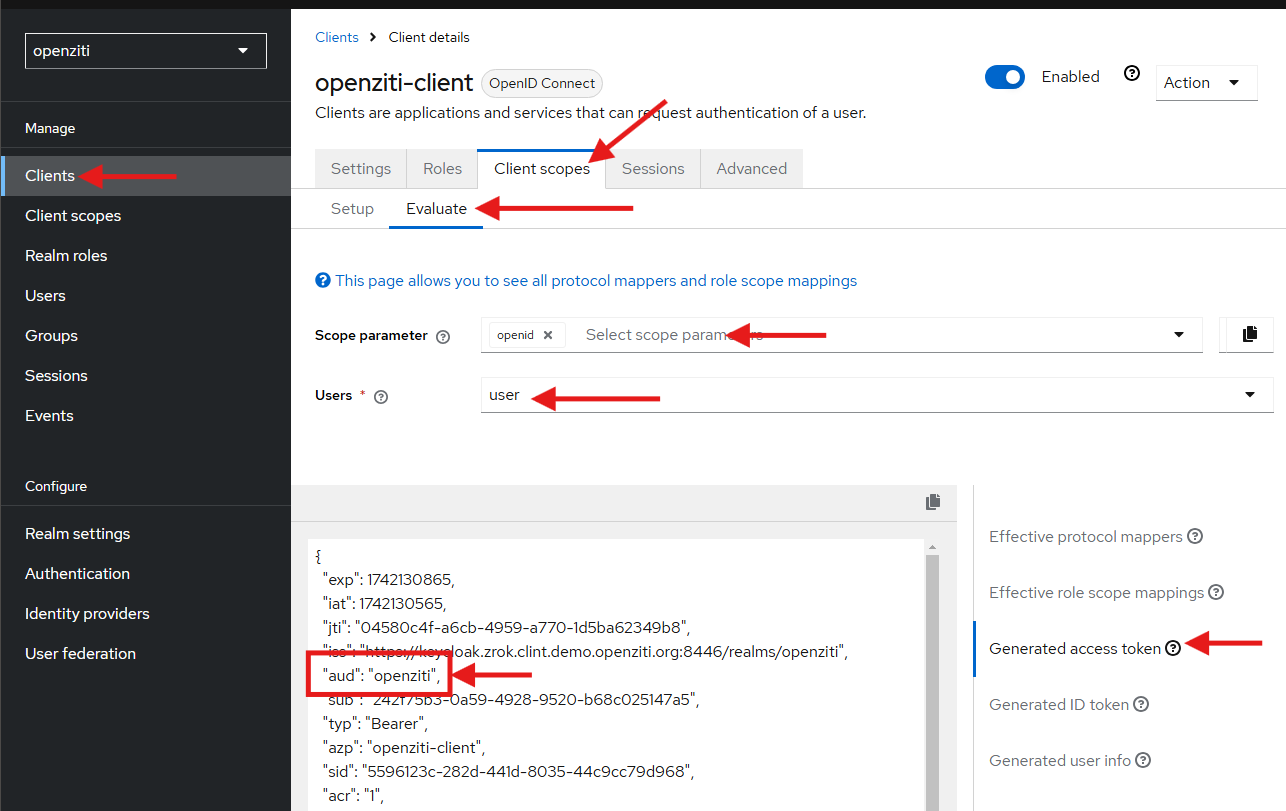
| Audience | From the Client Details screen, Client Scopes tab, Evaluate tab, pick a user and view the Generated access token | openziti-client |
| External Auth URL | The Keycloak realm URL | https://keycloak.example.com/realms/zitirealm |
| JWKS Endpoint | Use the jwks_uri field from the OpenID discovery endpoint | https://keycloak.example.com/realms/zitirealm/protocol/openid-connect/certs |
| Claims Property | Often email, but can also be sub or any other claim contained in the JWT | email |
| Scopes | openid included by default then any other standard or custom scope such as email, profile, etc. | profile offline_access |
Create a realm
A dedicated realm in Keycloak ensures isolation, security, and better management of users and applications. The master realm is generally used for admin tasks, not hosting apps. Creating a separate realm reduces security risks, simplifies maintenance, and allows custom authentication, roles, and policies tailored to your needs. It is recommended (but not mandatory) you create a dedicated realm.
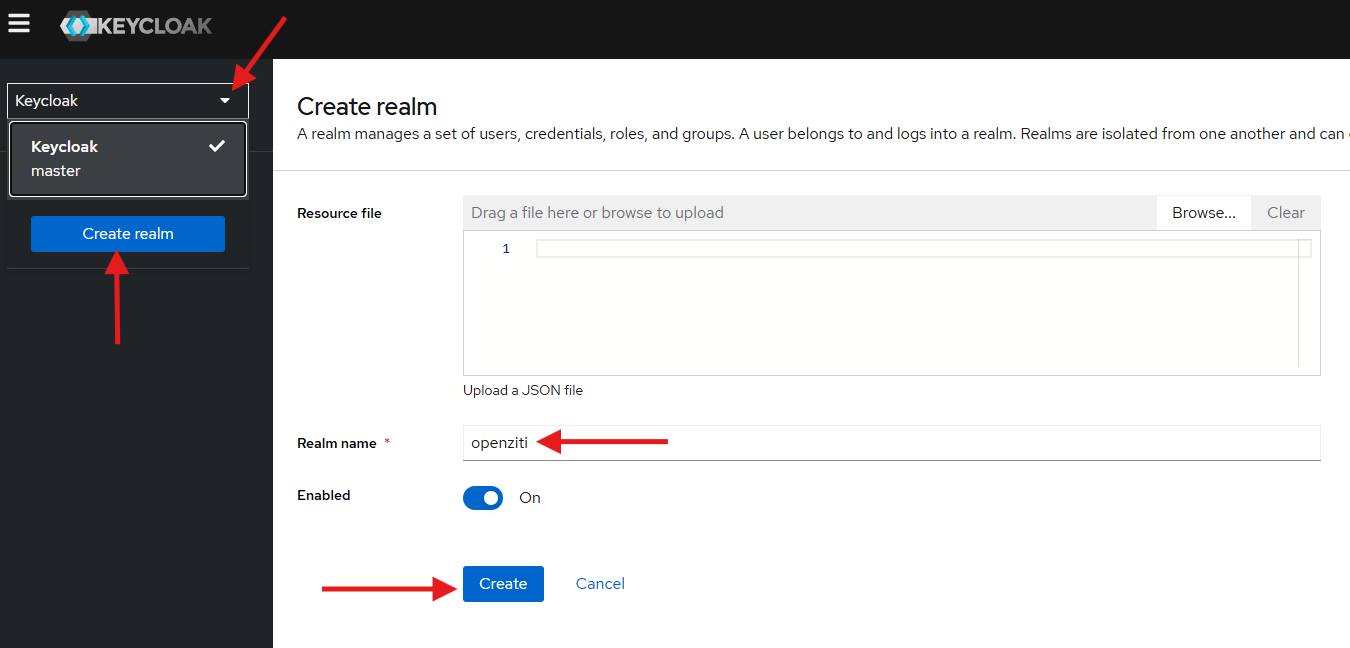
Click the dropdown in the upper left and choose Create realm. From the Create realm page enter a Realm name and click the Create button.
Create a client
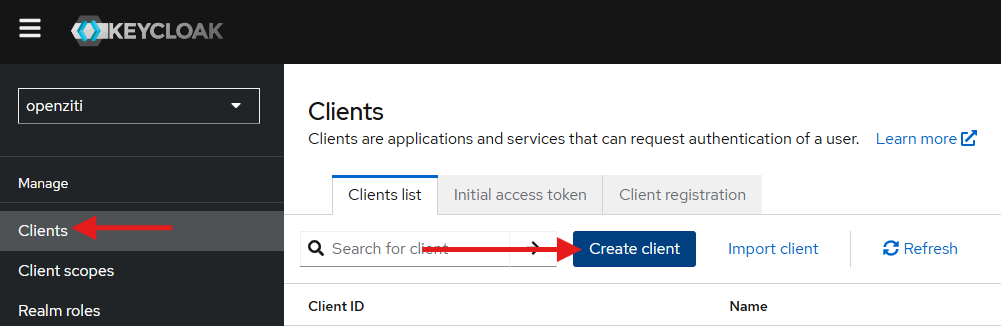
From the dedicated realm, click Clients and then choose Create client.
Create client: General settings
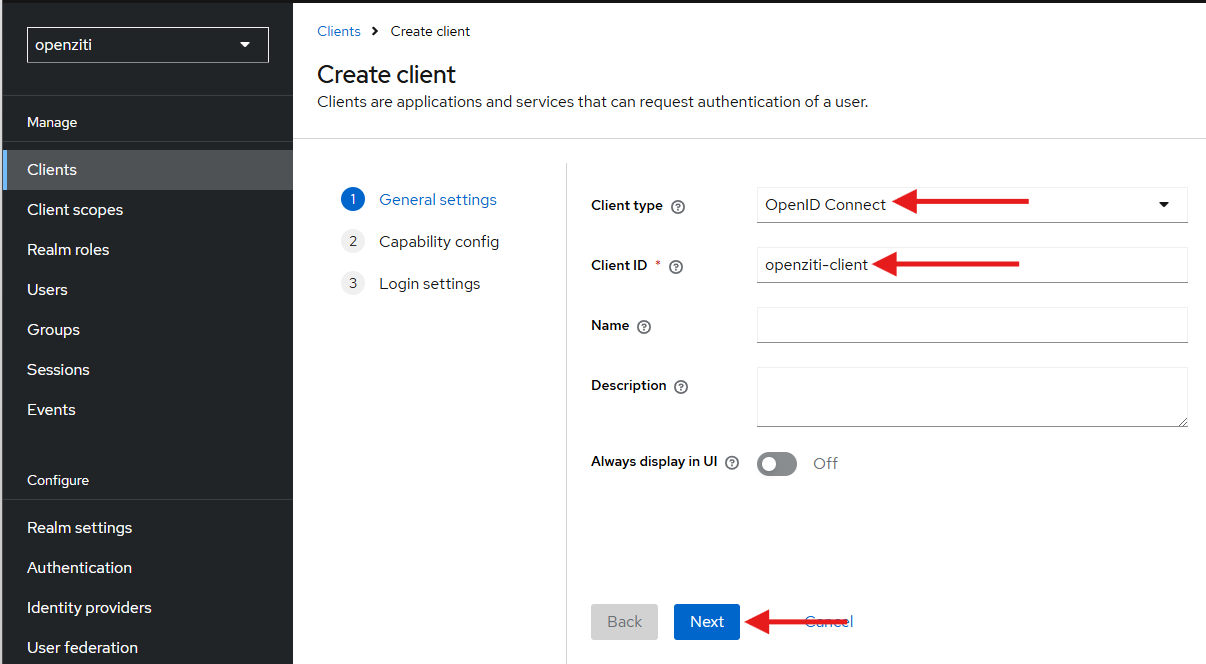
Under General Settings, ensure the Client type is set to OpenID Connect, enter a Client ID name and click the Next button.
Create client: Capability config
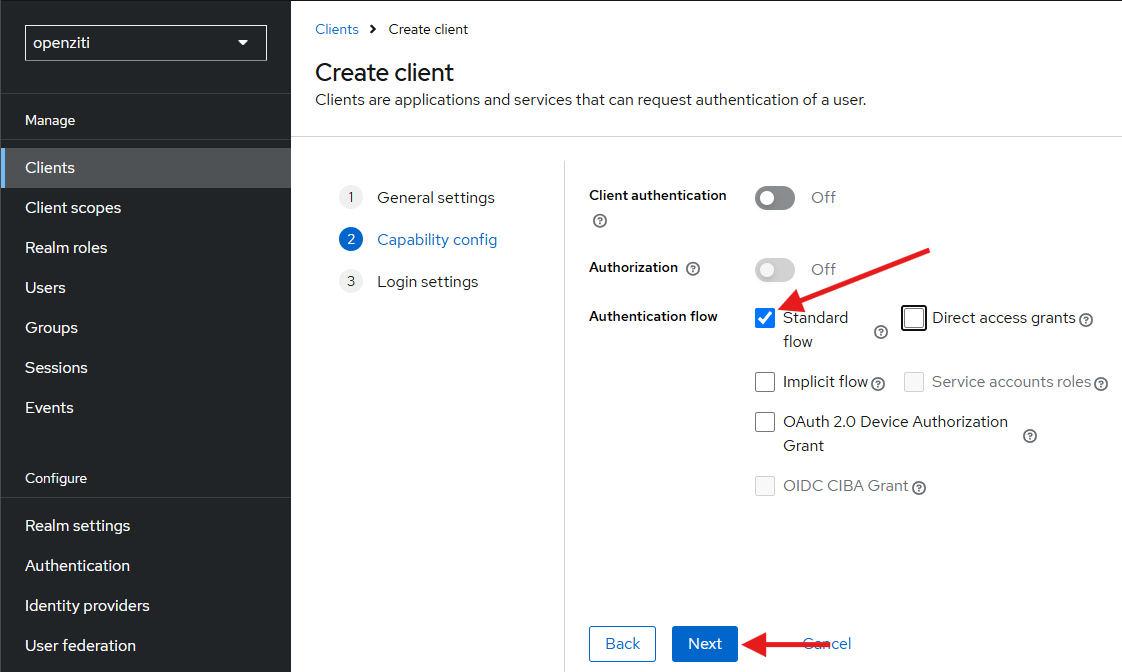
On the Capability Config screen, ensure the Authentication flow has at a minimum the Standard flow selected. It is the only flow that is required to be checked. Click Next.
Create client: Login settings
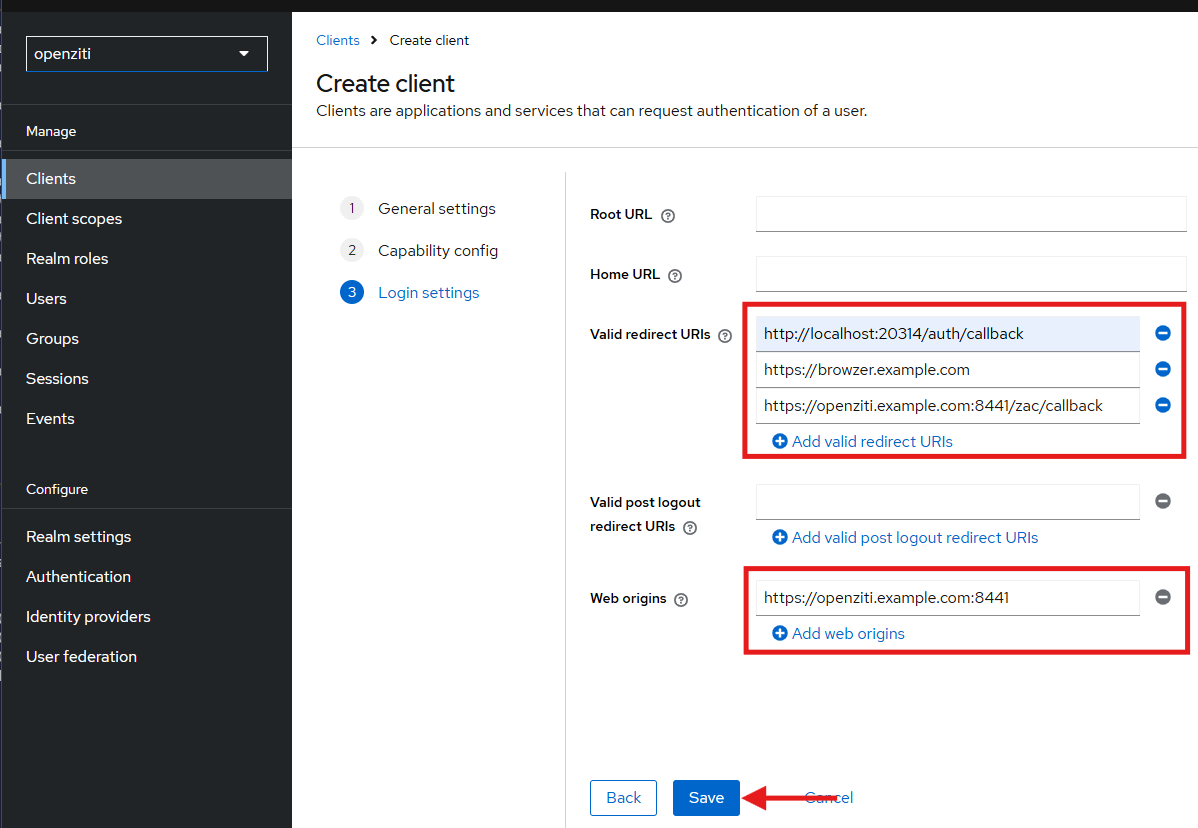
Finish creating the client by adding Valid redirect URIs, Valid post logout redirect URIs and Web origins as necessary.
Callback URLs
The Authorization Code Flow with PKCE or PKCE flow requires configuring callback URLs the Identity Provider (IdP) will allow redirecting to. If the URL for a specific client is not specifically listed, the IdP will deny the authentication request. Depending on the technology used to authenticate to the OpenZiti network, different URLs need to be specified. More than one URL is allowed to be configured. Decide if you are configuring the IdP for use with tunnelers, with ZAC, or with both and add the appropriate callback urls.
In the Auth0 dashboard, with the application selected, choose the Settings tab and scroll down to the Application URIs section and add the URLs.
For tunnelers
Tunnelers require an allowed callback URL of: http://localhost:20314/auth/callback.
For Ziti Admin Console (ZAC)
The URL to configure an IdP for so that ZAC will be able to authenticate will depend on how you deploy your ZAC.
The current method recommended to deploy ZAC will deploy it on the same URL as the controller. For example:
https://controller.example.com/zac/callback.
Assign an audience
Access tokens are generated for a specific audience. This requires the access token to have an aud claim that is
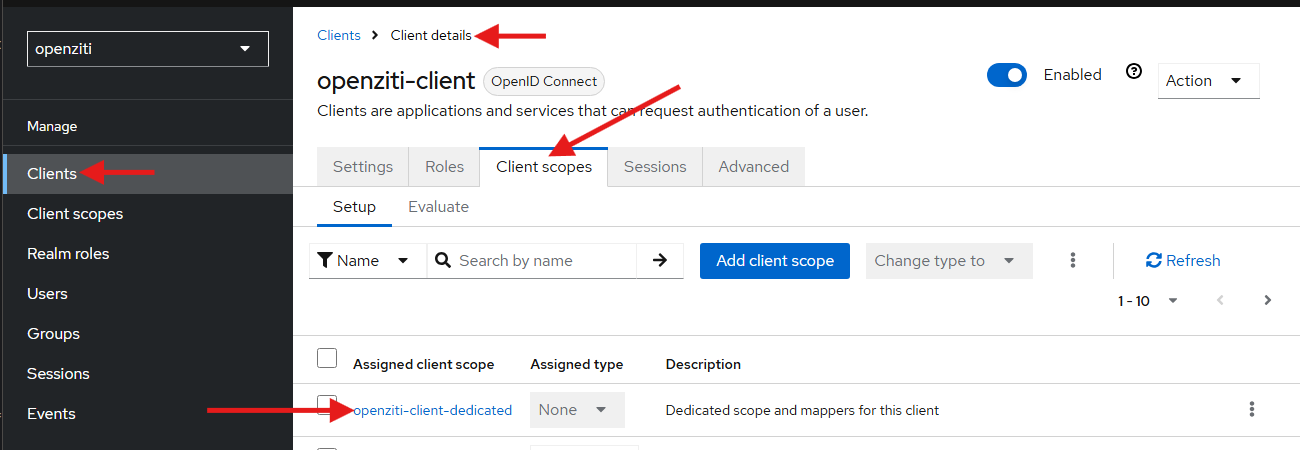
targeted for the API it's being sent to. To customize the access token's audience in Keycloak, after creating a
client, ensure you're on the Client details screen then click the Client scopes tab and select it. On the
details page, find the predefined ${clientName}-dedicated scope and click it.
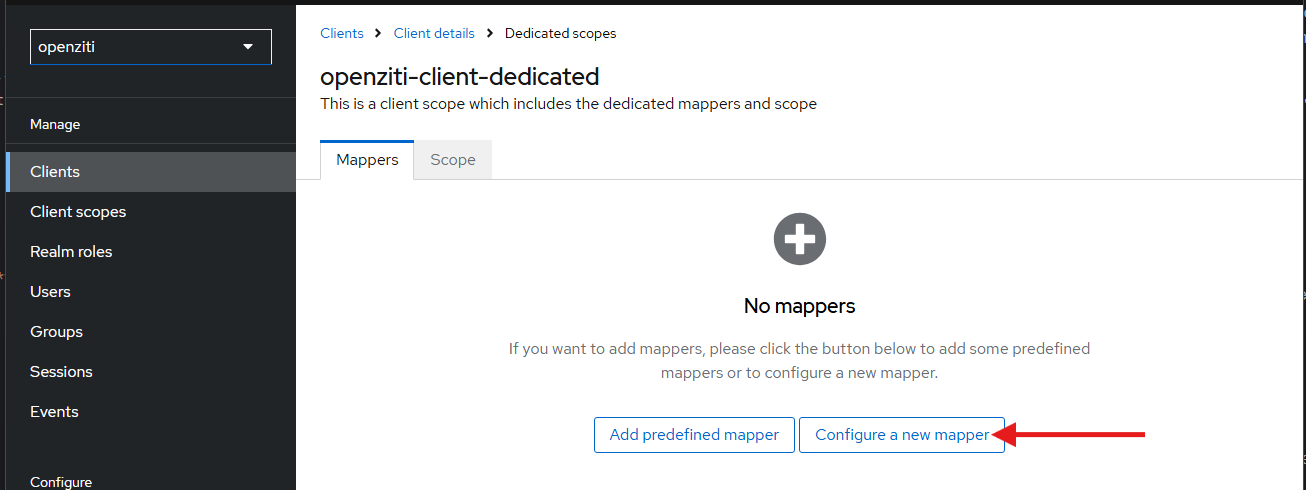
On the next page, click Configure a new mapper.
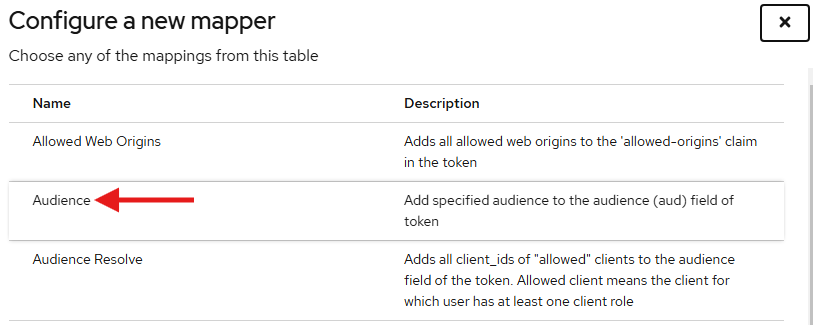
On the Configure a new mapper screen, select the Audience mapper.
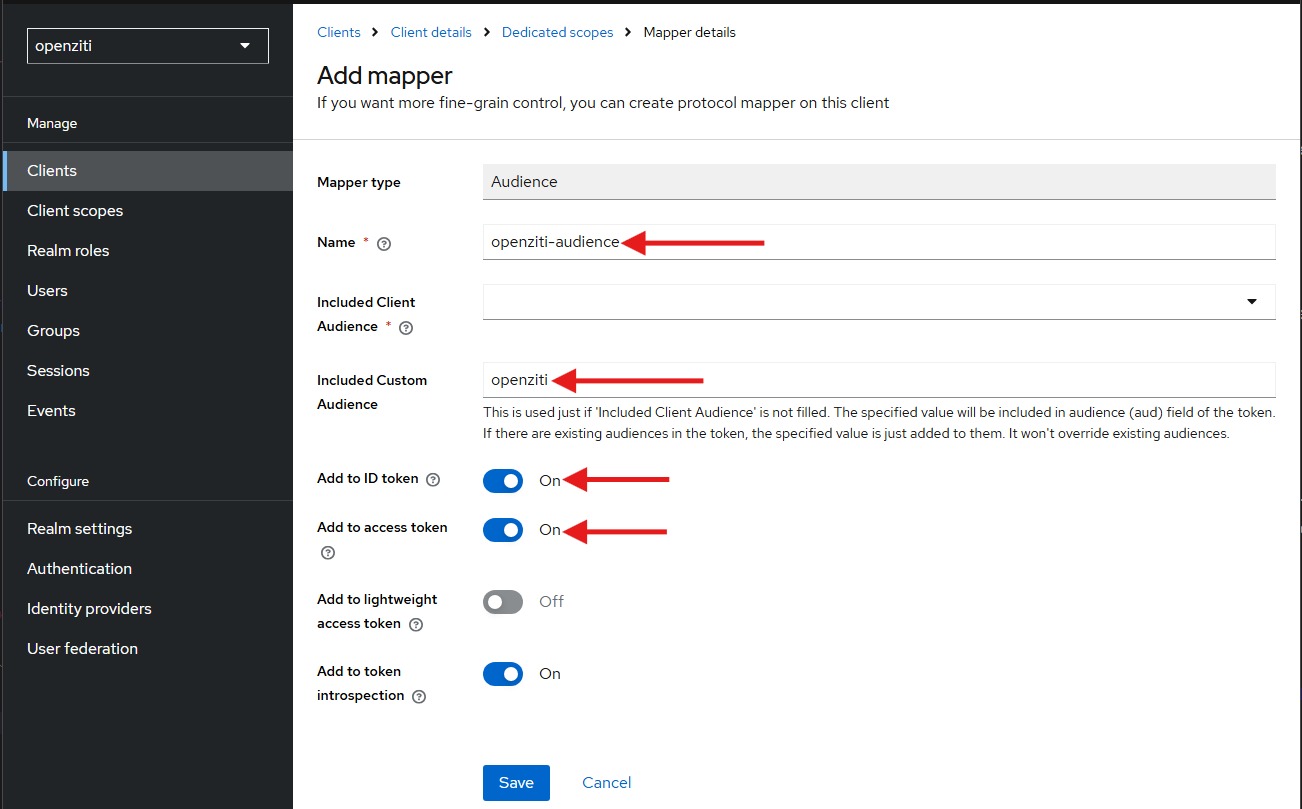
On the Add mapper screen, fill out the Name field and add your desired audience to the Included Custom Audience field. Ensure the audience is added to the access token and optionally, add it to the ID token as well.
Verify tokens in Keycloak
Keycloak has a very useful feature to allow you to view the tokens that will be generated. While on the client detail screen and Client scopes tab, click the easy-to-miss Evaluate sub-tab.
From the next screen, choose any extra scopes you want to see applied to the token request, choose a user to view the token for and then click the corresponding token to view, for example the Generated access token as shown below.