Deploy and enroll a connector
A connector is the software that carries traffic onto the zero trust network. This guide covers creating a connector, the applications it exposes, and the enrollment step that activates it. You can do this from the connectors page outside the setup wizard at any time.
For the concepts behind connector types and enrollment, see Key concepts.
:::note Two places to do this
- Across the provider: the main nav's Resources section → Connectors lists every connector in the provider.
- For one customer: Customers → pick a customer → the dashboard's Connectors tab shows only that customer's connectors.
See Two perspectives: Resources and the customer dashboard. :::
Create a connector
-
Sign in to the Customer Connect console. Service provider admins land on the provider dashboard; customer admins land on their own scoped dashboard.
-
Go to the Connectors page.
-
Click Add Connector.
-
Give the connector a Name.
-
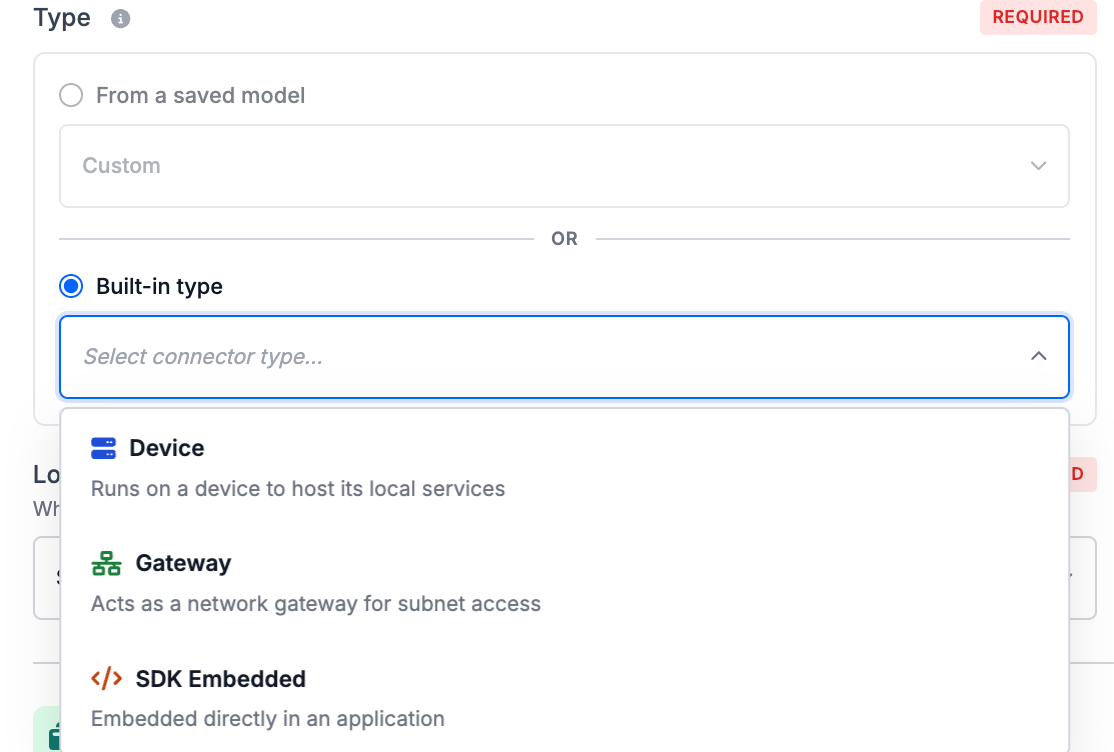
Set the Type. You have two options:
- From a saved model: Pick a connector model to inherit its type and applications. For more info, see Manage connector models and templates.
- Built-in type: Choose one of the built-in connector types. The What you'll deploy panel then shows the
software to install, with an Installers & docs link:
- Device: Runs on a device to host its local services. Deploys a Ziti Tunneler on the host.
- Gateway: Acts as a network gateway for subnet access. Deploys an Edge Router.
- SDK Embedded: The application embeds the client itself. Uses the OpenZiti SDK.
-
Assign the connector to a Location.
-
Under Hosted Applications, add or adjust the applications (type, protocol, listen/forward addresses and ports) the connector exposes.
-
Save the connector.
A connector's type and model are locked after creation. On edit, the type/model picker stays visible but is disabled with a Locked badge. To change type, create a new connector instead.
Enroll the connector
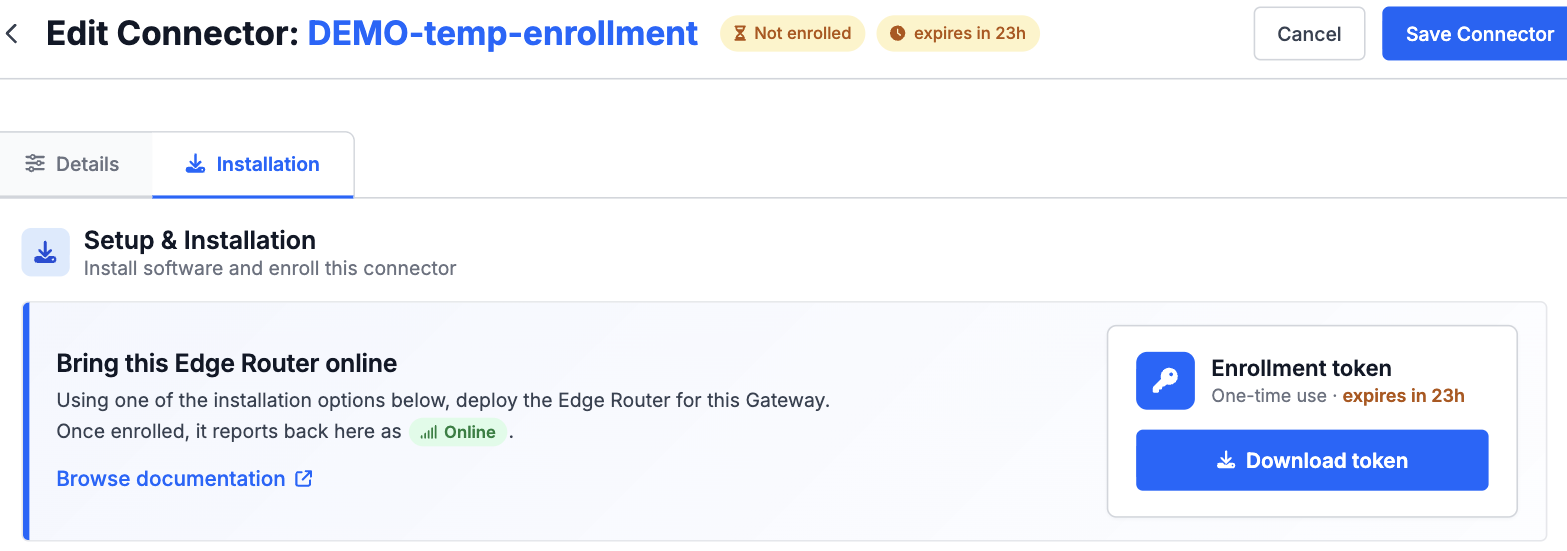
A new connector isn't trusted by the network until it's enrolled with a one-time token.
- Open the connector. Its edit page has three tabs — Details, Live Audit, and Installation. On the Installation tab, click Download token to get the enrollment token (a one-time-use JWT). The button appears only while a valid, non-expired enrollment token exists.
- Apply the token where the connector software runs, following one of the listed installation options for that location (on-prem host or cloud instance).
- The connector comes online and enrolled; its status indicators update in the console.
:::note Gateways can use a registration token instead (API only)
A Gateway deploys an edge router, which needs a router configuration as well as a credential. Rather than moving both to the host yourself, you can mint a short registration
token that the install script exchanges for the whole bundle — credential, controller host, and router configuration. There's no console button for it yet; it's
POST /connectors/{id}/registration-token, and it needs the same enroll permission as the token download. It brings a new gateway up — a gateway that has already enrolled
needs Reissue enrollment instead. See Registration tokens for
gateways.
:::
Reissue a token

If a token is lost or has expired, open the connector and click Reissue enrollment to generate a new one. Reissue is
the single action for regenerating a connector's enrollment credential. For an already-enrolled connector this
disconnects the existing identity until it re-enrolls with the new token, so the button warns you first. Downloading or
reissuing the token needs the enroll permission on the connector; a read-only viewer sees neither the token nor the
button.
Pause or resume a connector
An enrolled connector can be taken out of service without deleting it. Open the connector and use the Pause Connectivity toggle; it flips to Resume Connectivity while paused, and the connector shows a Paused status pill.

Pausing disables the connector's underlying tunneler or edge router so it can neither receive nor transmit
traffic; resuming restores it. The toggle appears only once the connector is enrolled, and it requires the
connectivity permission on the connector — a grant that's independent of edit rights, so an operator can pause traffic
without being able to change the connector's configuration. See
Connectors for exactly what pausing affects.
Manage connectors
From the connectors page you can:
- Search and filter, and toggle or reorder columns (status, enrollment, type, model, location, owner, applications, access policies).
- Edit a connector's name and applications.
- Delete a connector (you'll see an impact confirmation for anything that depends on it).
Next steps
- Build access policies so this connector can reach others, or be reached by them.
- Monitor the network with Live Audit