Manage operators and members
Operator management is scope-tabbed: the Provider, Customer, and Location tabs each list the people who hold roles in that scope. There's no global, mixed list. (The console labels these screens Users.)
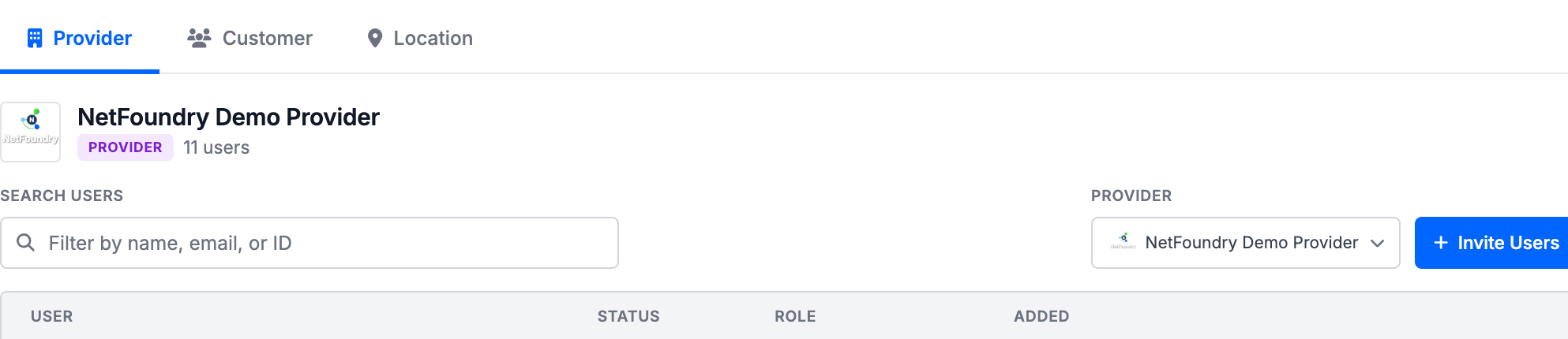
- Provider:
/provider/users. The operators who run the whole platform. - Customer:
/provider/customers/:customerId/usersor, for a customer admin,/customer/users. The provider staff scoped to that one customer — a Customer Admin works for the provider, not for the customer. - Location: Operators whose access is scoped to a single location. Pick the provider, customer, and location to see who has access there.
Every scope offers the same two roles here: Admin (full management within the scope) and Read-Only (view without changes). Both are operator roles, held by provider staff.
The third role, Member, is held by an employee of the end customer and is granted through the API rather than these
screens. It carries read, connectivity and enroll — enough to use and enrol what it covers, not to change it — and
applies to a customer or a location, never to a provider. See Roles and
grants.
Add an operator to a scope
- Open the relevant Users page.
- Click Invite Users. This one action does double duty: start typing in the email field, and the typeahead either matches someone who already has an account (add them directly) or lets you send an invitation to a new person at that address.
- Pick the role — Admin or Read-Only.
- Confirm. An existing account gains the role immediately; a new invitee receives a sign-in link and appears in the list once they accept.
Change an operator's role or remove access
Each row exposes an inline role dropdown to switch between Admin and Read-Only on that scope. Two distinct row actions remove someone:
- Revoke Access removes their role on this scope only — the account is preserved, along with any roles they hold in other scopes.
- Delete user removes the whole account.
Pending (not-yet-accepted) invitees also have a Resend invite action.
Granting members access to applications
Within a customer scope, a Customer Admin can use the Assign user access action to grant one or more members — employees of the end customer — access to specific applications. This is identity-based access control over which members can reach which applications at their locations. It complements (but doesn't replace) the access policies between connectors.